

Click on the Database tab and from the dropdown select the ABRI Member Login.
The database is called ABRI Online Solutions.

Log in with your membership number and password.
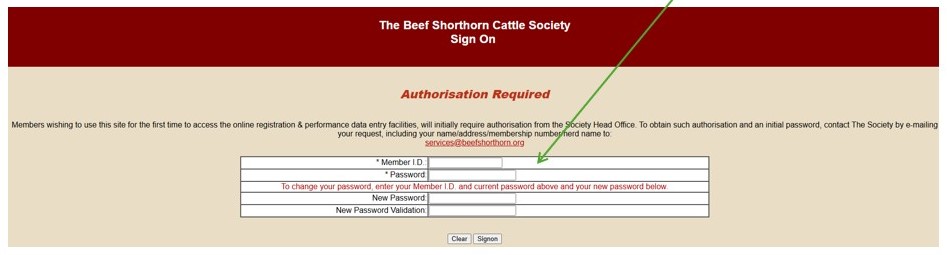
Please contact services@beefshorthorn.org for all password resets or log in issues. These can only be issued/resolved by our admin team.
There are three transaction types that can be entered.
Birth Notification (Option A)
A birth notification is a free entry that is required for all births, including Shorthorn cross calves and dead calves. The purpose of these entries is to maintain the cow records, and to record with the Society the outcome of each birth. Ideally all animals should be notified within 4 weeks of birth.
Registrations (Option A)
This is the record of all pedigree progeny of Sire and Dams within the Coates herdbook. Fees (https://www.beefshorthorn.org/the-society/fees-renewals/) are calculated by both entry method and time bands after date of birth. Once fully registered the animal appears in the Coates herdbook and will have the associated Pedigree Registration Certificate, as well as being searchable on the Society database which is called ABRI Online Solutions.
Upgrade from Notification to Registration (Option B)
This allows the user to select animals already notified on the system and upgrade them to a registered status by adding a small amount of extra data.
Click on Online Transactions

This is where you select if you are adding new animal data, or selecting an existing record and upgrading it.
Click on Create a new batch (Located directly below the header bar)

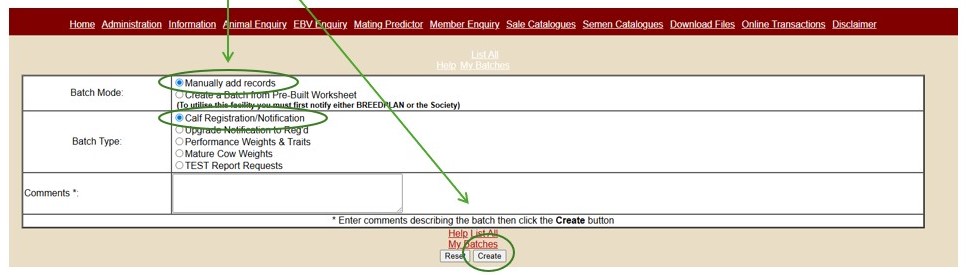
The below screen will appear where data can be manually added or uploaded.
To use the upload function you must notify services@beefshorthorn.org and use the datasheet provided to ensure all information is in the correct fields. Instructions for this method will be provided upon request.
NB: The remainder of the instructions below pertain to the manual entry of data.
Select ‘Manually add records’ and select ‘Calf Registration/Notification’ then click the ‘Create’ button at the base of the screen.
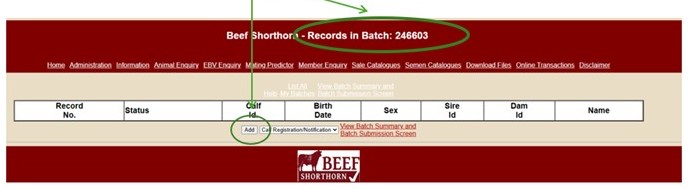
The below screen will appear. Make a note of the batch number given. NB: This is the reference of the transaction which will allow to office to trace your entry should there be an issue.
Click the ‘Add’ button
Select the Registration Status you require for the animal from the drop-down menu. The options are
Use the drop-down boxes denoted with arrows to select the relevant option. All fields must be completed except for birth weight which should only be entered if you have accurate data for the calf.

NB: If you have used AI or are registering an ET the flag must be set to YES and the associated date entered.
NB: Calving ease must be selected from the dropdown (the default of Not recorded MUST be changed)
Sires and Dams can be selected from a pre-populated list if you have used them before. If it is a first calf from that Sire or Dam you will need to search for it using either its Herdbook Number (HBN) or Ear-tag.
Ear-tag numbers MUST be entered in this exact format UK??????-?????? – UK must be in capitals and a dash (not underscore) in the centre between the ministry id and tag numeric.
If you cannot find the animal, then please contact services@beefshorthorn.org or call 01768 870522
Once you are happy all the information is complete click on the ‘GO’ button. If there are no errors a new blank form will appear for your next entry. However, the system is automatically set to ‘re-display if errors’ so if the screen does not move on, you will need to make data correction. Once rectified, select the ‘Always move to next record’ and click the ‘GO’ Button again.
IMPORTANT NOTE
If you enter incorrect information the System will flag this to you with the words FATAL ERRORS (in red text). If you see this, you will need to go back into that animal record and make the correction before you can submit the batch successfully.
If there is information entered that the Society wishes to query it will come up as a WARNING (in green text). For WARNINGS you will receive a .pdf document with your invoice requesting information that is needed to resolve the query. These are commonly referred to as RFI’s (Request for Information) and a registration cannot be completed until the Society office is given an answer. It is best to email this information to services@beefshorthorn.org or provide the DNA sample requested.
If you do not understand the RFI, or do not have the information to hand please call the Society office on 01768 870522 for further guidance on what is required to resolve it. The text used is not always self-explanatory so please do ask as our team is here to help you.
Adding more animals
You can add as many animal notifications/and or registrations to the batch as you like.
These records then need to be submitted to the Society *** These 2 next steps are key*** otherwise the office does not receive your data.
Click the ‘View Batch Summary and Batch Submission Screen’ link at the top of the form page.

Check the number of calves matches what you believe you have added.
Click ‘Submit batch to Beef Shorthorn’.
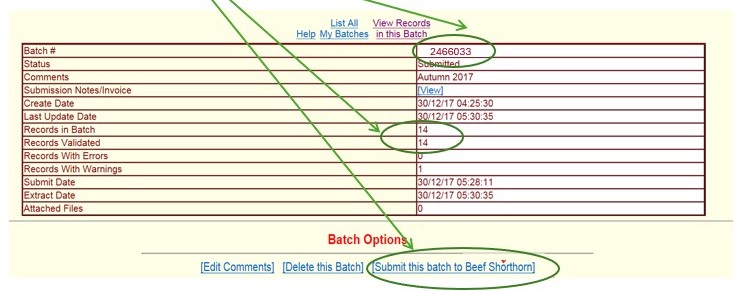
***Please note once a batch is submitted you cannot make any further changes.
If you have made a mistake, please inform the office in writing of any changes and the reason for these.
The system will generate an invoice for your submission which will be emailed through to you along with associated DNA bags for males. Once all RFI’s have been resolved and the related payments made, a Pedigree certificate will be created.
NB: Please note for Male registrations, a hair sample needs to be posted to the Society office in order for the registration to be completed. A bar-coded hair sample bag will be automatically printed and posted to you, however if it does not arrive, please call or email for a replacement.
If an animal notification has already been lodged with the Society, it is very simple process to upgrade this to a registration without having to reload the information.
(Log in)
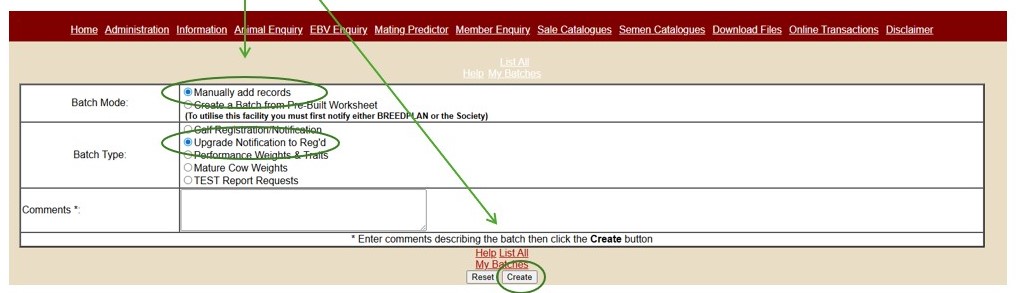
Click on Create a new batch (Located directly below the header bar)

Select ‘ Manually add records’
Select the Batch type of ‘ Upgrade notification to Reg’d’
Then click the ‘Create’ button
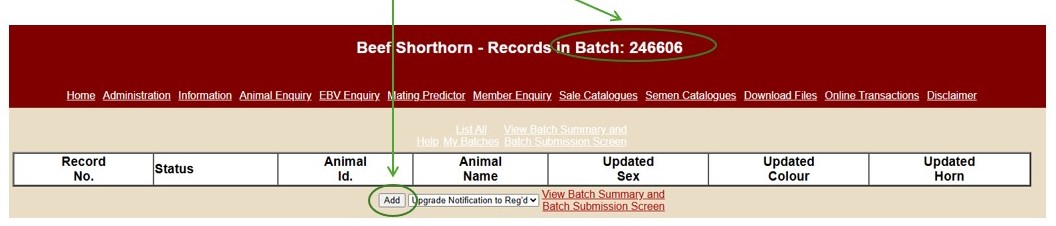
Take a note of the Batch number, then hit the ‘Add’ button
Search for the animal
NB: Ear-tag numbers MUST be entered in this exact format UK??????-??????. The UK must be in capitals and a dash (not underscore) in the centre between the ministry id and tag numeric.

Once you are happy all the information is complete click on the ‘GO’ button. If there are no errors a new blank form will appear for your next entry. However, the system is automatically set to ‘re-display if errors’ so if the screen does not move on, you will need to make data correction. Once rectified, select the ‘Always move to next record’ and click the ‘GO’ Button again.
You can add as many animal upgrades to the batch as you like.
These records then need to be submitted to the Society *** These 2 next steps are key*** otherwise the office does not receive your data.
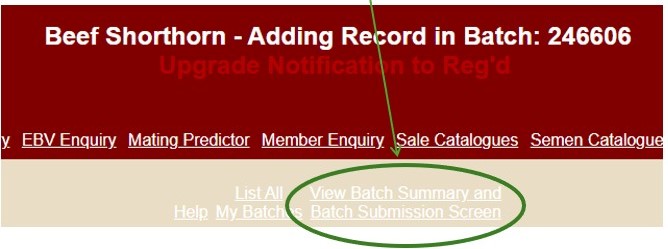
Click the ‘View Batch Summary and Batch Submission Screen’ link at the top of the form page.
Check the number of upgrades match what you believe you have added.
Click ‘Submit batch to Beef Shorthorn’.
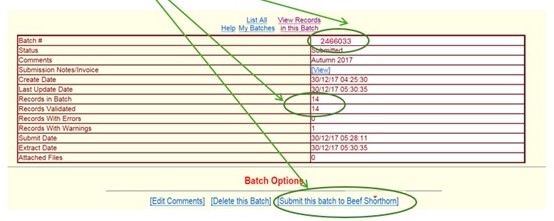
***Please note once a batch is submitted you cannot make any further changes.
If you have made a mistake, please inform the office in writing of any changes and the reason for these.
The system will generate an invoice for your submission which will be emailed through to you along with associated DNA bags for males. Once all RFI’s have been resolved and the related payments made, a Pedigree certificate will be created.
NB: Please note for Male registrations, a hair sample needs to be posted to the Society office in order for the registration to be completed. A bar-coded hair sample bag will be automatically printed and posted to you, however if it does not arrive, please call or email for a replacement.
If you have any problems or queries that arise about our Online registrations system or require further information, please contact the Beef Shorthorn team on 01768 870522 or email services@beefshorthorn.org
For password resets contact services@beefshorthorn.org


